

Google Business Profile (formerly Google My Business) is the most powerful free marketing tool available to Halifax small businesses. It’s what puts you on Google Maps, helps you appear in local search results, and lets customers leave reviews that build trust before they ever contact you.
If you haven’t set it up yet — or if you set it up years ago and haven’t touched it since — this guide will walk you through exactly what to do.
Step 1: Go to Google Business Profile
Visit business.google.com and sign in with a Google account you want to use for your business. If you already have a Gmail for your business, use that. If not, create one.
Search for your business name. If it appears (it may have been auto-generated by Google), claim it. If it doesn’t, click “Add your business to Google.”
Step 2: Enter Your Business Information
Fill in every field you can:
- Business name: Use your exact legal or commonly known business name. Don’t add extra keywords here — Google penalizes keyword stuffing in business names.
- Category: Choose your primary category carefully. This is one of the most important ranking factors. For example, “Web Designer” or “Marketing Agency” or “Roofing Contractor.” You can add secondary categories too.
- Address: If you have a physical location in Halifax, enter it. If you work from home or go to clients, you can list a service area instead and hide your address.
- Service area: Add Halifax, Dartmouth, Bedford, and any other HRM communities you serve.
- Phone number: Use a local Halifax number if possible. This adds credibility.
- Website: Link directly to your website homepage or the most relevant landing page.
- Hours: Keep these accurate. Inaccurate hours are a top reason customers leave negative reviews.
Step 3: Verify Your Business
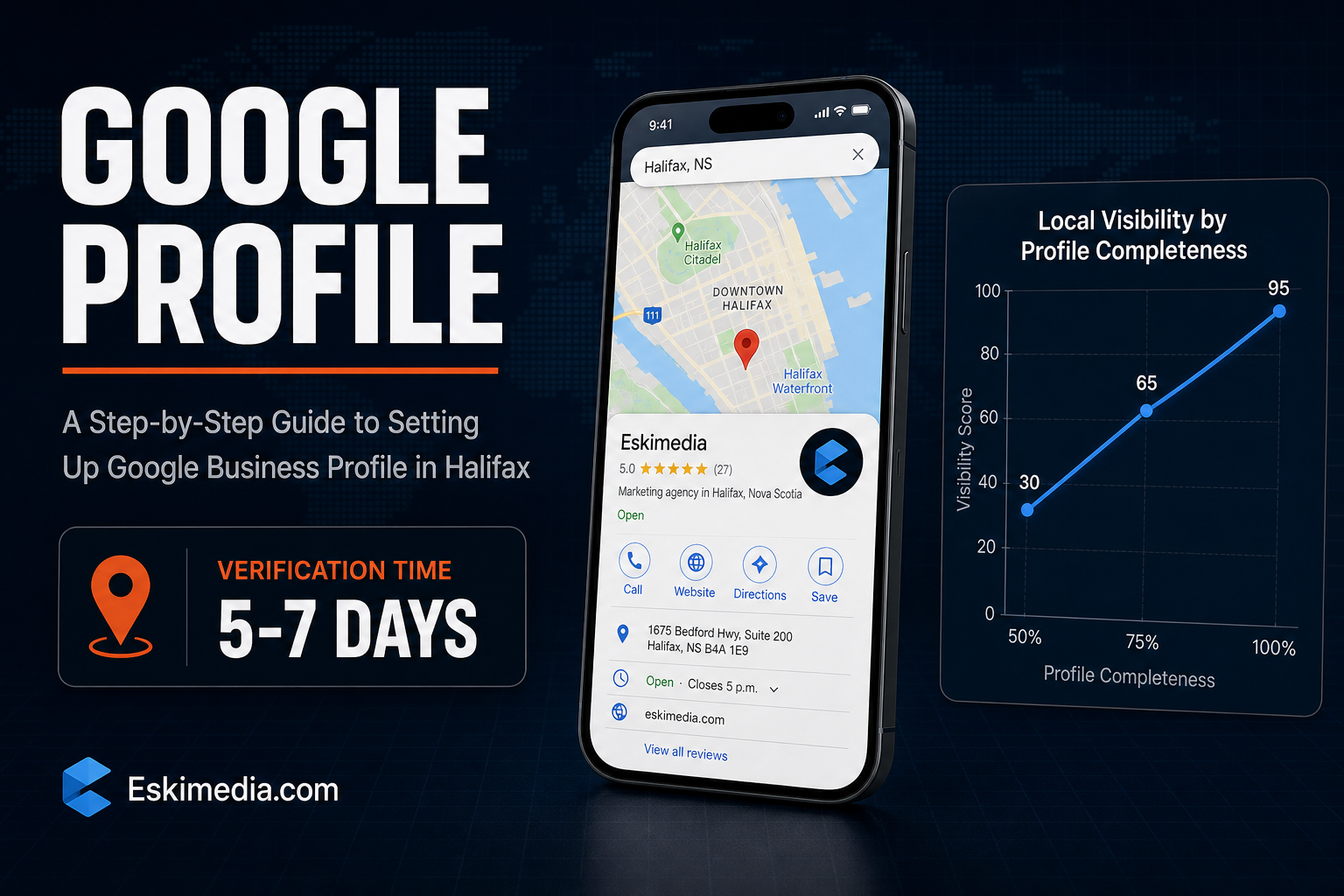
Google needs to verify that you’re the actual business owner. The most common method is a postcard mailed to your business address with a verification code. This typically takes 5–7 business days in Halifax.
Some businesses are eligible for phone or video verification. Once verified, your profile becomes visible on Google Maps and Search.
Step 4: Complete Your Profile — 100%
A complete profile ranks significantly higher than an incomplete one. Make sure to add:
- Business description: Write 200–300 words naturally describing what you do, who you serve, and where you’re located. Mention Halifax and your service areas naturally.
- Services: List each specific service you offer. Google shows these in your profile and uses them for matching searches.
- Photos: Add at least 10 high-quality photos — your team, your workspace, your work examples, your logo, and the exterior of your location if applicable. Businesses with photos get significantly more clicks.
- Products (if applicable): If you sell specific products or packages, list them with prices.
Step 5: Start Collecting Reviews
Reviews are the single most impactful thing you can do for your local SEO. After completing a job or project, ask your Halifax clients directly to leave a Google review. Make it easy — Google provides a direct review link you can send via text or email.
Respond to every review, positive or negative. This signals to Google that your business is active and engaged, and it shows potential customers that you take feedback seriously.
Step 6: Post Regular Updates
Google Business Profile has a Posts feature that lets you share updates, offers, events, and new services. Businesses that post regularly tend to rank better in local results. Aim for at least two posts per month — even short ones work.
What If You Don’t Have Time for All This?
Setting up your profile takes a few hours. Maintaining it — responding to reviews, posting updates, keeping information current, optimizing for new services — is ongoing work. If you’d rather focus on running your business, our Halifax SEO service includes full Google Business Profile management as part of every monthly plan.
Contact us today and we’ll audit your current profile and tell you exactly what needs to be fixed.