
Shopify Collection Pages Not Indexed: Filters, Thin Content and What to Fix First

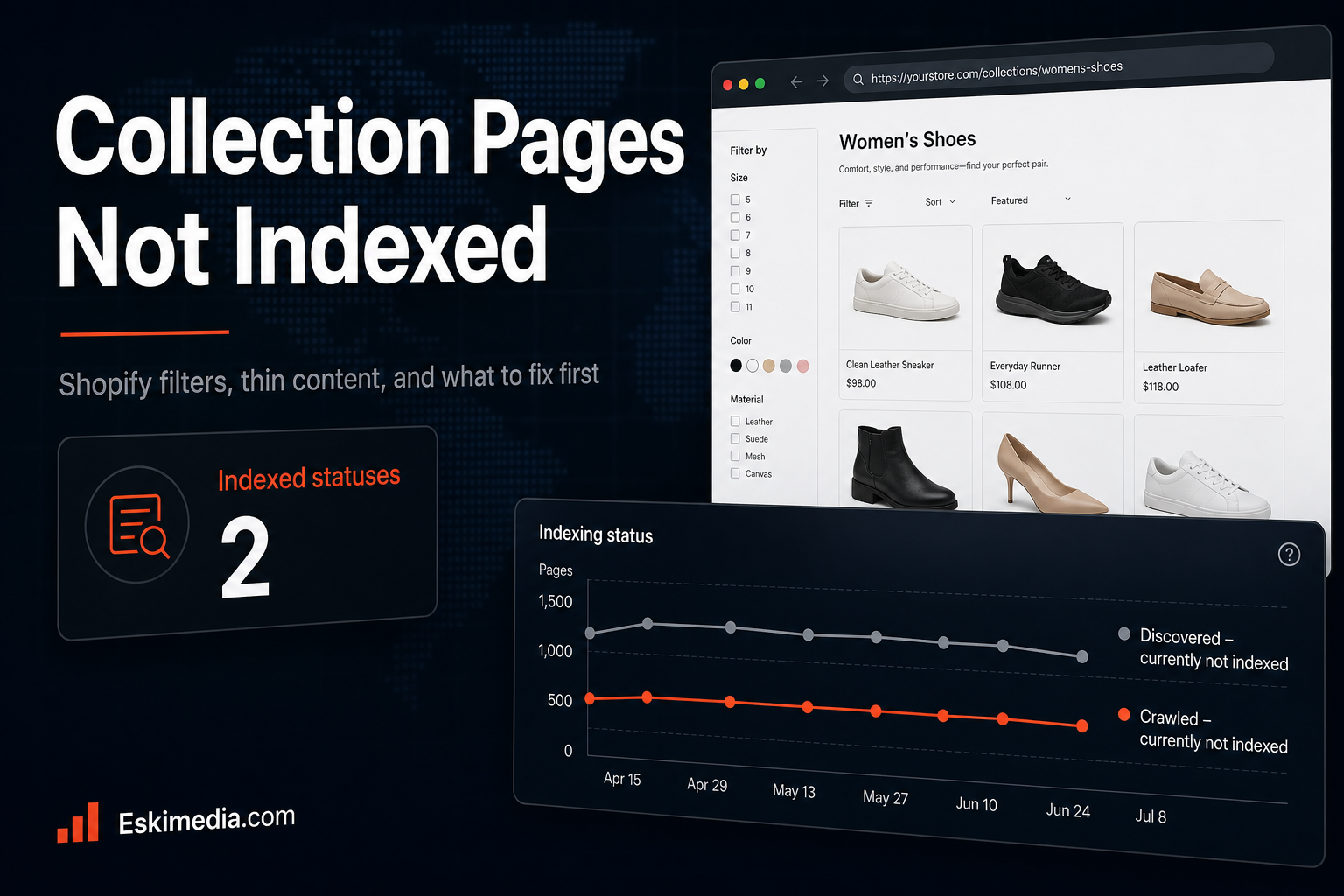
Your product pages show up in Google. Your collection pages, the ones that should rank for “wool socks” or “handmade soap Nova Scotia”, don’t. Search Console lists them under “Discovered – currently not indexed” or “Crawled – currently not indexed”, and requesting indexing hasn’t changed anything.
Collection pages usually fail for one of five reasons: something is blocking them, Google sees them as near-duplicates of each other or of filtered versions, they have almost no content of their own, nothing links to them, or Google’s crawling is being spent on thousands of low-value URLs first. The Search Console status tells you which direction to look.
What the Two Statuses Mean
| Status | What it means | Where to look first |
|---|---|---|
| Discovered – currently not indexed | Google knows the URL exists but hasn’t crawled it yet | Internal links, crawl waste from filter and product URLs |
| Crawled – currently not indexed | Google looked at the page and decided not to index it, for now | Thin or duplicate content, weak differentiation between collections |
| Excluded by “noindex” tag | Something tells Google not to index it | SEO apps, the seo.hidden metafield, theme code |
| Alternate page with proper canonical tag | Google is indexing a different URL instead | Usually fine for filtered or paginated versions |
Step 1: Rule Out the Blockers
- Is the store still password-protected? Stores launched in a hurry sometimes keep the storefront password on. Nothing gets indexed while it’s there.
- Is the collection available on the Online Store sales channel? A collection that isn’t published to Online Store won’t be in the sitemap and won’t be reachable.
- Is it hidden from search? Shopify uses a metafield,
seo.hidden, to hide pages from search engines and the sitemap. Some SEO and filter apps set it for you. Check the collection’s metafields or your app settings. - What does the page source say? View the source of the collection page and search for
noindexandcanonical. The canonical should point to the collection’s own clean URL. - What does URL Inspection say? In Search Console, inspect one affected collection. It reports whether crawling is allowed, whether indexing is allowed and which canonical Google chose.
Step 2: Check Whether Filter and Product URLs Are Crowding Out Your Collections
A single collection can generate hundreds of URL variations: sorted, filtered, paginated, and product URLs reached through the collection. Shopify’s default robots.txt already blocks some of them. On a standard store you’ll see rules like these:
Disallow: /collections/*sort_by*
Disallow: /collections/*+*
Disallow: */collections/*filter*&*filter*
That blocks sorted views, old tag-filter URLs and URLs with more than one filter. A URL with a single filter, like ?filter.v.option.color=Blue, is still crawlable. With several filter types, that can still add up to a lot of URLs Google crawls before it gets to your collections.
Two other patterns to check:
- Collection-aware product URLs. Many themes link to products as
/collections/socks/products/wool-sockinstead of/products/wool-sock. Both work, the canonical points to the second, but Google still has to crawl both. Some stores block the collection-aware version in robots.txt. A cleaner fix is having the theme link to/products/URLs directly. - Tag and vendor pages such as
/collections/vendors?q=and/collections/all, which duplicate your real collections.
You can edit these rules through a robots.txt.liquid template in your theme. Shopify’s help page is clear that it’s an unsupported customization, and a wrong rule can block your whole store. Keep Shopify’s default rules in place through the Liquid objects and only add to them.
Step 3: Give Each Collection a Reason to Exist
This is the most common cause of “Crawled – currently not indexed”. To Google, many collection pages are a title and a grid of product names that also appear on three other collections.
Look at your collections as a list and ask:
- Are any of them near-duplicates? “Men’s Socks”, “Socks for Men” and “Men’s Wool Socks” with 80% of the same products is two collections too many. Merge them and redirect the old URLs.
- Does each have a real description? Two or three short paragraphs above or below the grid, written for a shopper: what’s in this range, how to choose, what materials or sizes to expect, shipping notes. Not a keyword list.
- Does it have enough products? A collection with two products rarely earns a place in search on its own. Either grow it or fold it into a broader one.
- Is the title tag specific? “Wool Socks | Store Name” beats “Collection: Products | Store Name”. Set it in the collection’s search engine listing section.
Adding local detail where it’s genuine helps too. “Made in Lunenburg County” or “ships from Dartmouth, usually within two days” is useful to shoppers and distinguishes the page from every other store selling similar products.
Step 4: Link to Your Collections Properly
Collections that are only reachable through filters, a search box or a JavaScript mega-menu may barely be linked in the HTML Google sees. Check:
- Your main navigation links directly to your key collections.
- The homepage features your most important collections with normal links.
- Product pages link back to their main collection, with a breadcrumb or “More from…” link.
- Blog posts and guides link to the relevant collection where it’s genuinely useful.
Then resubmit your sitemap in Search Console. Shopify generates it automatically at /sitemap.xml, including a separate file for collections.
How Long Until They’re Indexed?
After fixing blockers, days to a couple of weeks. After adding content, merging duplicates and improving links, expect a few weeks, and don’t be surprised if some weaker collections stay out. That’s Google making a judgment about the page, and the fix is a better page, not repeated “Request indexing” clicks.
If you’ve been through all four steps and your collections still aren’t showing up, the problem usually needs a crawl of the full store to see what Google is spending its time on. That kind of review is part of our e-commerce and SEO work. If you’re still choosing a platform, we compared the two main options in Shopify vs WooCommerce in Canada. Send us your store URL if you’d like a look.