

Website Contact Form Emails Not Arriving? The Four Usual Causes and How to Fix Them

The contact form says “Thank you, we’ll be in touch.” The customer waits. You never got the message. A week later they mention it on the phone, or more likely they never call again and hire someone else.
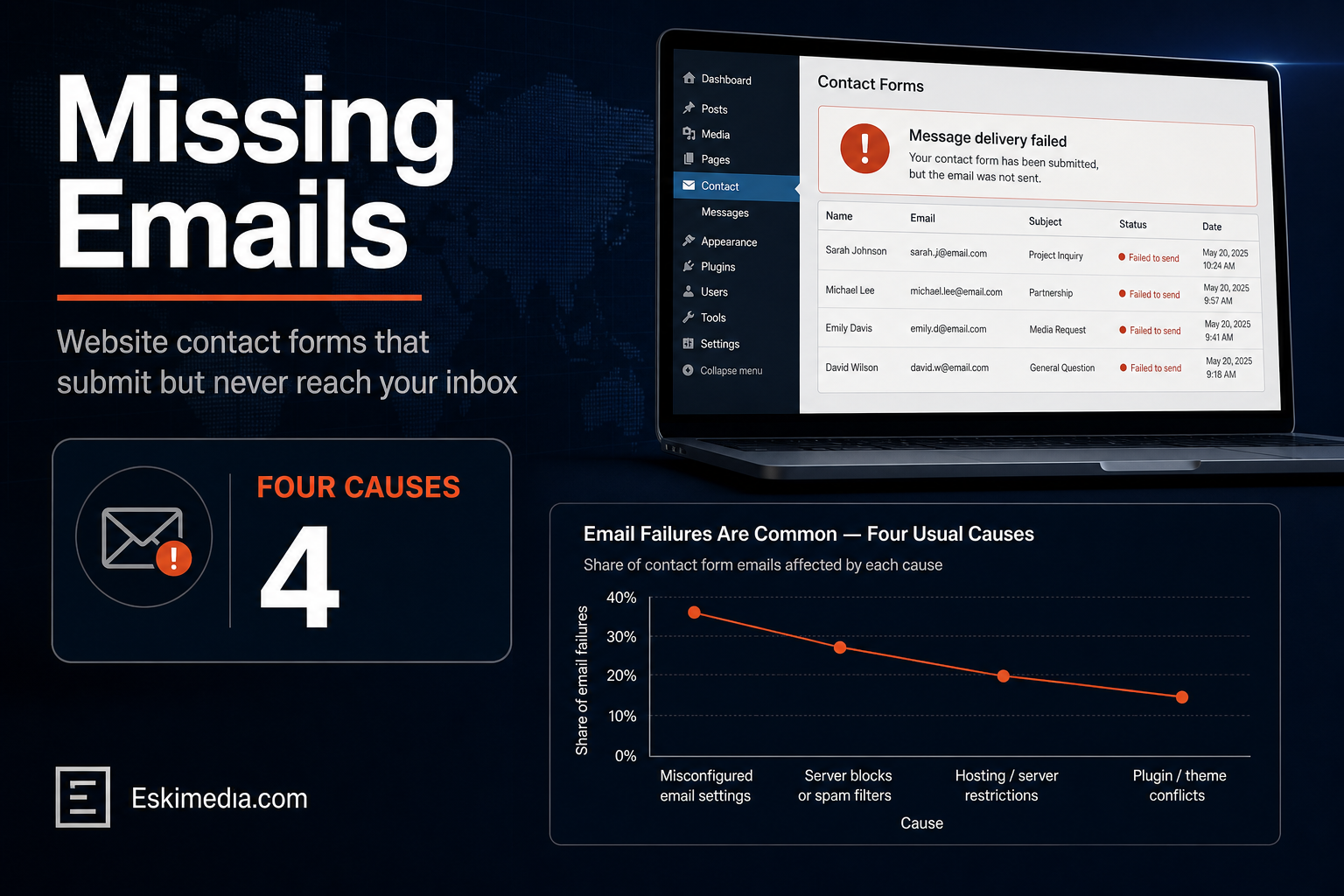
When a WordPress contact form “works” but the emails don’t arrive, it’s almost always one of four problems, and they can be checked in order in under an hour:
- The form sends the notification “from” the visitor’s email address, so receiving servers treat it as a forgery.
- The site sends through the server’s unauthenticated PHP mail instead of a real mail account.
- Your domain’s SPF and DKIM records don’t cover the service actually sending the email.
- The email is being delivered to the wrong mailbox, usually an unused one on your hosting account.
This matters more since 2024. Gmail’s sender requirements now expect every sender to use SPF or DKIM authentication, and Microsoft and Yahoo apply similar rules. Messages that fail don’t always bounce. They just disappear into spam or get dropped.
First, Find Out Where the Message Went
- Check spam and junk in the inbox that should receive it, including any “Other” or quarantine folder in Microsoft 365.
- Check whether the form saved the submission. Elementor Pro, Gravity Forms and several other form plugins store entries in WordPress. If the entry is there but the email isn’t, the form works and email delivery is the problem.
- Send a test to a Gmail address you control, then open the message and use “Show original”. The SPF, DKIM and DMARC lines tell you exactly what failed.
Cause 1: The “From” Address Is the Visitor’s Email
This is the one we’d check first, because it’s so common and so easy to fix. Many forms are set up so the notification appears to come from the person who filled it in: From: jane@gmail.com, sent by your website’s server.
To Gmail, that’s your server pretending to be Gmail. Google’s rules say plainly not to impersonate Gmail From headers, and the message fails authentication.
The fix, in your form’s email settings:
| Field | Set it to |
|---|---|
| From address | An address on your own domain, like website@yourbusiness.ca |
| From name | Your business name, or “Website enquiry” |
| Reply-To | The visitor’s email field |
| To | The inbox that should receive enquiries |
With Reply-To set, hitting reply still goes to the customer. Nothing changes for you except that the email arrives.
Cause 2: The Site Uses PHP Mail
By default, WordPress hands email to the web server’s built-in mail function. On most shared hosting, including Hostinger, that mail goes out without proper authentication for your domain, and receiving servers are suspicious of it.
The fix is to send through a real mail account using SMTP or an email API. Install an SMTP plugin such as WP Mail SMTP or FluentSMTP and connect it to one of these:
- The email service you already use for your domain, such as Google Workspace, Microsoft 365, or your host’s email.
- A transactional email service, such as Brevo, Mailgun or Postmark, if you prefer to keep website mail separate. Most have a free tier that easily covers a small business contact form.
Send yourself a test from the plugin after connecting it.
Cause 3: SPF and DKIM Don’t Match the Sender
SPF is a DNS record that lists which services may send email for your domain. DKIM adds a signature that proves a message really came from an authorized sender. Both live in your domain’s DNS settings.
Common mistakes:
- Two SPF records. A domain may have only one. If you have separate records for Google Workspace and your website’s mail service, merge them into one, like
v=spf1 include:_spf.google.com include:[your mail service] ~all. - The sending service isn’t in the SPF record. If the SMTP plugin sends through Brevo but SPF only lists Google, the check fails.
- DKIM never set up for the service sending the website’s mail. Each service gives you its own DKIM record to add.
- No DMARC record. Start with a monitoring policy (
v=DMARC1; p=none; rua=mailto:you@yourbusiness.ca) so you get reports before you tighten anything.
For reference, Google Workspace uses include:_spf.google.com and Microsoft 365 uses include:spf.protection.outlook.com. Other services list their values in their setup guides. Free checkers like MXToolbox show what your domain currently publishes.
Cause 4: The Email Is Going to an Unused Mailbox
This one confuses people most. Your real email is hosted with Google or Microsoft, but your hosting account also has an email service switched on for the same domain. When the website sends a message to you@yourbusiness.ca, the server may deliver it to the mailbox on the hosting account, which nobody ever checks, instead of sending it out to Google or Microsoft.
Fix: in your hosting panel, make sure email for the domain is set to use the external provider, or turn off the host’s email service for that domain if you don’t use it. Sending through SMTP via your real provider (Cause 2) also avoids it.
Build a Safety Net
- Use a form plugin that stores every submission in WordPress, so nothing is lost even if an email fails.
- Send notifications to two addresses if enquiries matter a lot to your business.
- Submit a test once a month. Put it in the calendar. Hosting changes, plugin updates and DNS edits break email quietly.
- Check again after any redesign or hosting move. Email settings are among the things that go missing when a site is rebuilt, along with the ones listed in what breaks in a website redesign.
If your problem is the opposite, too many form emails and most of them junk, that’s spam submissions rather than delivery. Our article on stopping spam leads covers form protection.
Form delivery, DNS records and SMTP setup are part of our website maintenance and build work, and it’s a quick check for us if you’re not sure where your messages are going. Get in touch. And if the form on your site is the one that’s broken, send us a note at the email address on that page, or just call.