
Google Business Profile Video Verification for Home-Based Businesses: What to Film So It Isn’t Rejected

Most video verification advice assumes you have a storefront: film the sign, pan to the business next door, walk through the front door. If you run your business from home, a truck or a shared workshop, you have none of that, and Google still wants a video.
Here’s what Google actually asks a service-area business to show, in its own words: “where your business operates”, the “professional tools, equipment, or products” you use, and a document such as a “business permit, invoice, or utility bill.” Your van, your gear and your paperwork do the job a storefront does for everyone else.
The rest of this page is a shot list built around that, plus the reasons home-based videos get rejected and what to change before you record again.
The Rules That Don’t Bend
These come straight from Google’s help page. Break one and nothing else in the video matters.
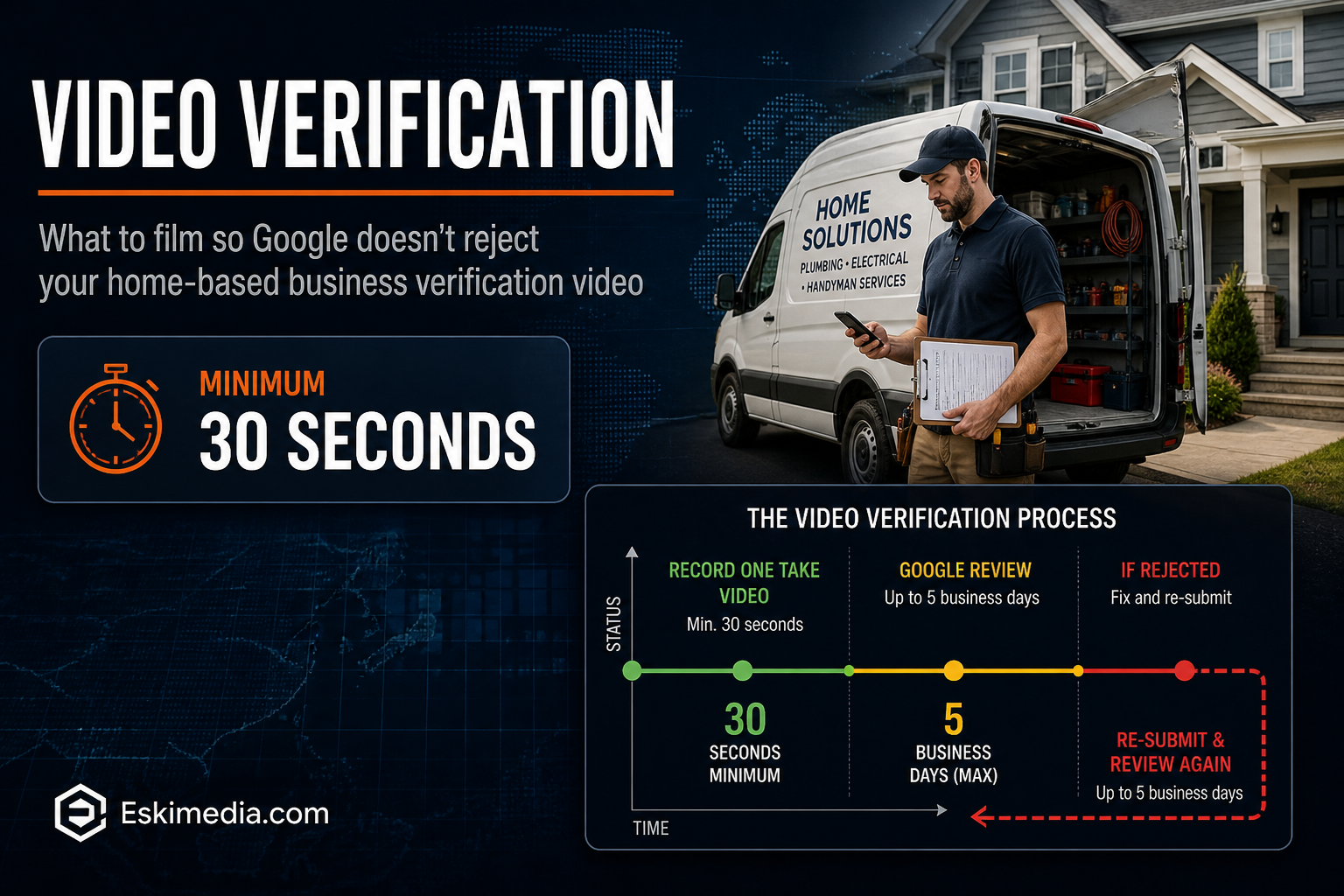
- At least 30 seconds, recorded live in the verification flow on your phone. Pre-recorded clips can’t be uploaded.
- One continuous take. No cuts, no pausing, no editing.
- No other people’s faces, and no private information about you or anyone else.
- No sensitive numbers. Google names bank account, tax and ID numbers specifically.
Review takes up to five business days. If it’s rejected, Google tells you what was missing, and the next video has to include everything from the first one plus the missing piece.
Before You Press Record
Ten minutes of preparation saves a week of waiting on a rejection.
- Check the profile matches reality. Business name exactly as it appears on your signage, vehicle or registration. If the profile name ends in “Plumbing & Heating” and the van only says “Plumbing”, fix one of them first.
- Record from where the business is based. Your phone’s location is part of the check. Record at the address you gave Google, even if that address is hidden from the public.
- Stage your documents. Lay them out where you’ll reach them mid-video. Cover anything with numbers you’re not allowed to show (more on that below).
- Clear the house. No family members, housemates or customers in frame. Turn off the TV. Film when nobody’s around.
- Do a dry run without recording. Walk the route once so you’re not hunting for keys at second 40.
A Shot List for Home-Based and Service-Area Businesses
Aim for roughly a minute to a minute and a half. That’s long enough to show everything without rushing, and short enough to do in one take.
| Roughly | What to film | What it proves |
|---|---|---|
| 0–15 sec | Start at the road. Your civic number sign, the street sign at the corner, or a landmark anyone local would recognize. | Location |
| 15–30 sec | Walk to your vehicle, trailer or workshop. Hold on any business name or logo until it’s readable. | The business exists |
| 30–50 sec | Use your own keys to open the vehicle, toolbox or workshop. Show the tools, equipment or stock you use for the job. | You manage it; this is a working business |
| 50–75 sec | Show a business document with your business name on it: a registration, an invoice to a customer (client details covered), or a utility bill in the business name. | Management and legitimacy |
| Optional | Open your business email or invoicing app on a second device and show the business name in the account header. | Extra proof of management |
If you have no branded vehicle, don’t panic. The location, the tools and the documents carry more weight when there’s no signage, so slow down on those parts.
Which Documents Work in Canada, and What to Cover
Google asks for proof of management but bans tax and ID numbers from the video. For Canadian businesses those two rules collide on the most obvious documents, so plan for it.
| Document | Useful because | Before filming |
|---|---|---|
| Nova Scotia business registration (Registry of Joint Stock Companies) | Shows the legal or registered business name | Fine to show the name; cover any registry ID if you’d rather not share it |
| CRA letter confirming your business number | Official, clearly tied to the business | Cover the business number. It’s a tax number |
| Utility bill (for example, Nova Scotia Power) in the business name at your address | Links the business to the location | Cover the account number |
| Recent customer invoice | Shows you’re actively trading | Cover the customer’s name and address |
| Municipal business licence or trade certificate, if your trade has one | Shows you operate legally in the area | Cover licence numbers if you prefer |
Sticky notes over the numbers work. Blurring afterwards doesn’t, because editing isn’t allowed.
Why Home-Based Videos Get Rejected
“Location is different from Business Profile service area”
This message comes up again and again in the Business Profile community forum. It appears to fire when the place you record doesn’t line up with the location on the profile. Common reasons: filming at a job site instead of your base, a pin that sits somewhere else, or an address that Google has placed incorrectly. Record at the verified address. If the pin itself is off, fix it first; our guide to fixing pin and civic address problems covers that.
“We couldn’t see the surrounding area”
The video started indoors or zoomed in too tight. Open wider and start outside. A street sign or civic number in the first few seconds solves most of these.
“You didn’t show you manage the business”
You filmed things anyone could film from the street. Unlocking something with your own keys and showing a document with the business name are the two most reliable fixes.
“We couldn’t confirm the business”
Usually a name mismatch, or nothing in the video carries the business name at all. A magnetic sign on the vehicle, a printed invoice or a registration document gives Google something to read.
If It Keeps Getting Rejected
Read the rejection reason, change only what it points to, and record again with everything from the previous video included. Resist the urge to edit your business name, category or address between attempts. Profile edits during verification tend to reset the process rather than help it.
After two or three rejections for the same reason, stop re-recording and contact Business Profile support from inside your profile. Explain that you’re a service-area business, describe what you’ve shown, and ask what specifically is missing. A human reply is more useful than a fifth guess.
It’s also worth asking whether you’re set up correctly in the first place. If customers never come to your address, the profile should be a service-area business with the address hidden. If they do come to you, even occasionally by appointment, show the address. Getting that choice wrong makes verification harder and can create problems later. Our setup guide walks through the decision.
After You’re Verified
Verification gets you on the map. It doesn’t decide where you rank. A service-area profile’s ranking is still anchored to the hidden address, which is why a verified business in Halifax can be hard to find from Dartmouth. That’s a separate problem with its own fixes.
If you’ve been through a few rejections and would rather hand it over, profile setup and verification are part of our local SEO work. We plan the shot list with you and check the profile before you record. And because we also shoot video for a living, we know the difference between footage that shows something and footage that proves it. Tell us where you’re stuck.