
Google Ads Getting Clicks but No Calls? A Diagnosis for Local Service Businesses

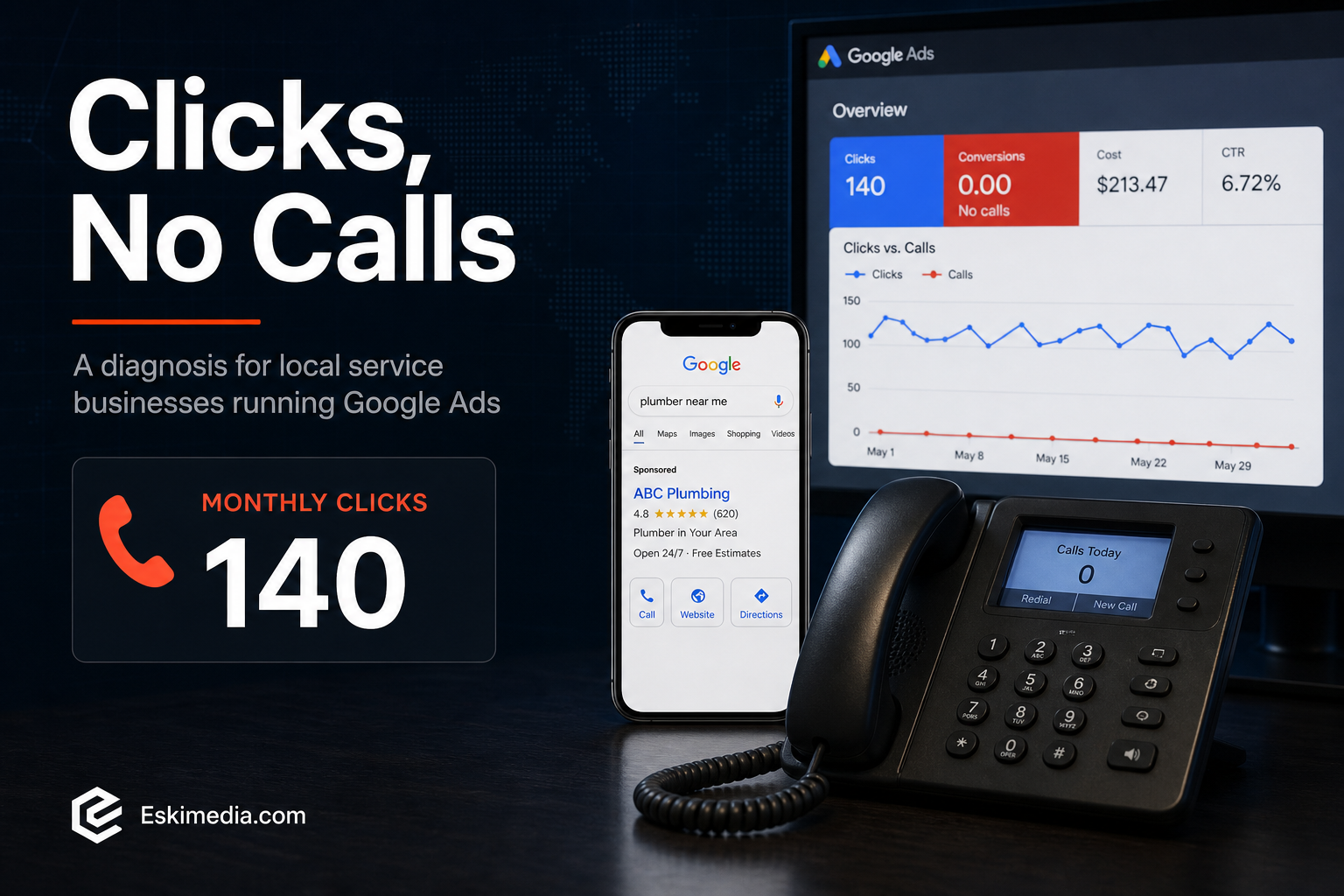
The Google Ads dashboard says 140 clicks this month. The phone rang maybe four times, and two of those were people selling SEO. Money is going out and nothing is coming in.
When a local service business gets clicks but no calls, there are only three possibilities. The calls are happening but nobody is counting them. The wrong people are clicking. Or the right people are clicking and then leaving. Check them in that order, because the first takes five minutes and the fix for the others depends on what you find.
At a Glance: Symptom, Likely Cause, Fix
| What you see | Likely cause | Fix |
|---|---|---|
| Zero calls reported, but the phone has rung | Call tracking not set up | Turn on call reporting; add website call tracking |
| Search terms full of “how to”, “DIY”, “jobs” | Keywords matching research and job-seeker searches | Negative keywords; tighter keyword list |
| Clicks from Toronto, Moncton or the U.S. | Location set to “presence or interest” | Switch to “presence” |
| Clicks at 11 p.m., calls going to voicemail | No ad schedule | Run ads when someone answers |
| Decent search terms, high bounce, no calls | Landing page problem | Fix the mobile page the ad sends people to |
| Lots of cheap clicks from websites and apps | Display Network or search partners switched on | Turn them off in a Search campaign |
Step 1: Are the Calls Happening but Not Being Counted?
A surprising number of accounts report “0 conversions” while the business is actually getting ad calls. Check three things.
- Call reporting. In your call assets, call reporting uses Google forwarding numbers to count calls made directly from the ad. If it’s off, those calls happen but never appear in the account. Google’s help page on call reporting covers turning it on.
- Calls from the website. Most people who click an ad land on your site first, then call. Those calls aren’t counted unless you’ve set up website call conversions, which swap in a Google forwarding number for ad visitors, or at least track taps on your phone number.
- Your phone records. Look at your call log for the last month. How many calls came from unfamiliar numbers during hours your ads ran? That’s a rough check on whether the account is under-reporting.
One more source of confusion: calls from your Google Business Profile are not Google Ads calls. If your map listing brings in calls, they show in the profile’s performance report, not in Ads. Don’t credit, or blame, the ad account for them.
If tracking turns out to be the problem, fix it and let it collect data for a few weeks before changing anything else. You can’t optimize what you can’t see.
Step 2: Who Is Actually Clicking?
Open Insights and reports → Search terms, set the date range to the last 30 or 90 days, and sort by cost. This report shows the actual searches that triggered your ads, and it’s where most wasted money shows up.
Patterns that almost never produce calls for a service business:
- Research and DIY: “how to fix”, “how much does it cost to”, “diy”, “youtube”
- Job seekers: “jobs”, “hiring”, “salary”, “apprenticeship”, “course”
- Parts and products: “price of”, “buy”, “parts”, “Home Depot”, “Kent”
- Other businesses by name: competitor names often cost a lot and convert poorly
- Services you don’t offer: “commercial” when you only do residential, or the reverse
- Places you don’t serve: towns outside your area that appear in the search itself
Add those words as negative keywords at campaign level. Then look at your keywords themselves. Broad match, which Google now often sets as the default, works reasonably well when the account has solid conversion tracking and smart bidding to steer it. In an account with no conversion data, which is exactly the situation in Step 1, broad match has nothing to learn from and wanders. Phrase and exact match keep a small local budget on the searches you actually want.
Step 3: Where Are They?
This is the setting most small accounts get wrong without knowing it exists. Under Campaign settings → Locations → Location options, the default is “Presence or interest”. Google describes it as reaching people in your target area “as well as people who have shown interest in your targeted locations.” That can include someone in Ontario reading about Halifax.
For a business that only serves customers in HRM, switch to “Presence: people in or regularly in your targeted locations”. Then open the locations report and look at where your users were, not just where you targeted, to see where past clicks actually came from.
Think about the shape of your target area, too. A radius around downtown Halifax pulls in parts of the Eastern Shore and the South Shore that you may not want to drive to. Targeting named areas, or a radius drawn around where your customers actually are, is usually tidier.
Step 4: When Are They Clicking?
If your ads run 24 hours a day and nobody answers the phone after 5 p.m., evening clicks turn into voicemails, and many people don’t leave one. They call the next business instead.
Set an ad schedule that matches the hours someone reliably picks up. If emergency calls are a real part of your business and you do answer at night, keep those hours, but consider a separate campaign for emergency terms so you can see what they cost.
Step 5: What Happens After the Click?
If Steps 1 to 4 look clean, the ads are reaching the right people, and the page they land on is losing them. Open the landing page on your phone, not your computer, and check:
- Is the phone number visible without scrolling, and does tapping it start a call?
- Does the page match the ad? An ad for “furnace repair” should land on a furnace repair page, not your homepage.
- Does it say where you work? People in Sackville want to see Sackville, or at least HRM, early on the page.
- Does it load quickly on mobile data? A slow page loses people before they see anything. See why a site can be fast on desktop and slow on mobile.
- Is there a reason to call now? Availability (“booking this week”), a price range, reviews, photos of real jobs.
- Is the form short? Name, phone, a short description. Every extra field loses people.
If you’d honestly hesitate to call from that page, so will your customers.
Step 6: Check the Network Settings
New Search campaigns often have Google search partners and the Display Network ticked by default. Display placements in particular can produce lots of cheap clicks from apps and websites where people tapped by accident. For a local service business on a limited budget, turn both off in the Search campaign and look at Display separately if you ever want it.
What “Working” Looks Like
For a local service business, the useful number isn’t clicks or cost per click. It’s cost per real inquiry: calls longer than a minute or so, plus form submissions that turned out to be genuine. Track that for a month after fixing the problems above. Then compare it with what a job is worth to you.
A small budget leaves little room for waste. If a few hundred dollars a month buys only a limited number of clicks, one wrong setting can use up most of them. That’s why the checks above matter more than any clever ad copy. Our article on marketing for Halifax contractors covers how ads fit with the rest of the lead mix, and Google Ads vs Facebook Ads compares the two platforms for local businesses.
If you’ve worked through this and still can’t see where the money goes, a second pair of eyes on the account usually finds it quickly. As part of our Google Ads management, the first thing we do is exactly this check: tracking, search terms, location settings, schedule and landing page. Send us a note and we’ll look at your account with you.